 experience10 years
Maksim S.
Graphics card repair technician
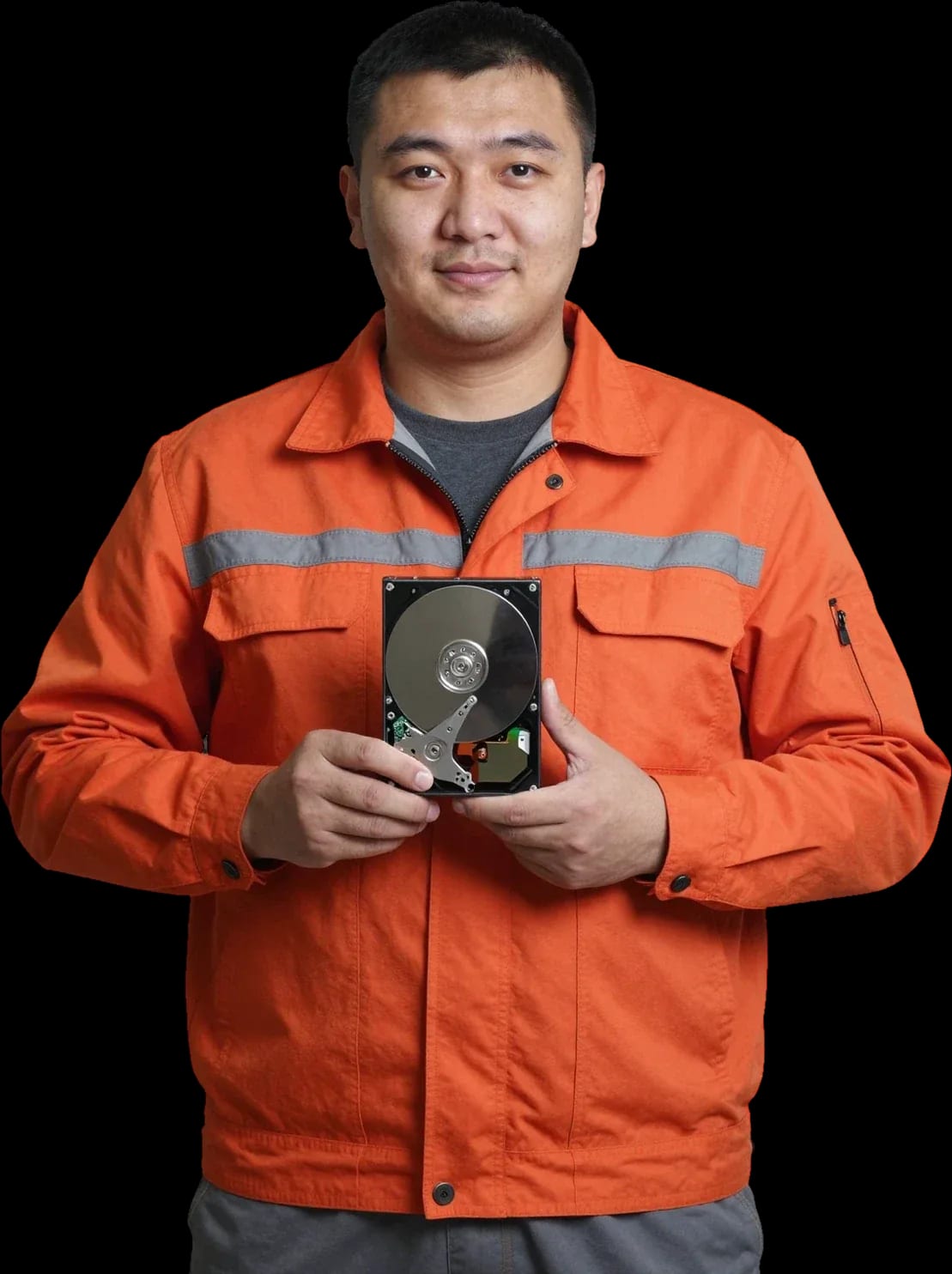
We bring drives and data back. A technician comes out within 60 minutes anywhere in the city.
Our own technicians4 to 20 years of experience



Repair prices
The symptom tells you where to look for the cause. The technician makes an exact diagnosis after inspection and testing.
head mechanics, a jammed head assembly
from51 000 ₸
controller board, cable, connector
from28 000 ₸
firmware, controller, worn memory cells
from9 500 ₸
dust-clogged vents, heavy load
from9 500 ₸
surface wear, platter degradation
from33 000 ₸
drive degradation, firmware failure
from4 000 ₸
corrupted partition table, firmware errors
from4 000 ₸
USB connector, board, cable
from8 000 ₸

Five steps from request to checking the result.
Describe the symptom and the drive model so the technician brings the right tools.
A technician comes out within 60 minutes anywhere in the city and works on site or at the service.
The technician explains the repair and data recovery options, and you choose the one that suits you.
You decide which work to do; the technician starts once it is agreed.
You check the result on the spot: the drive is detected, files open and can be copied.
The computer and laptop repair department in Almaty has 7 technicians with 6 to 15 years of experience.
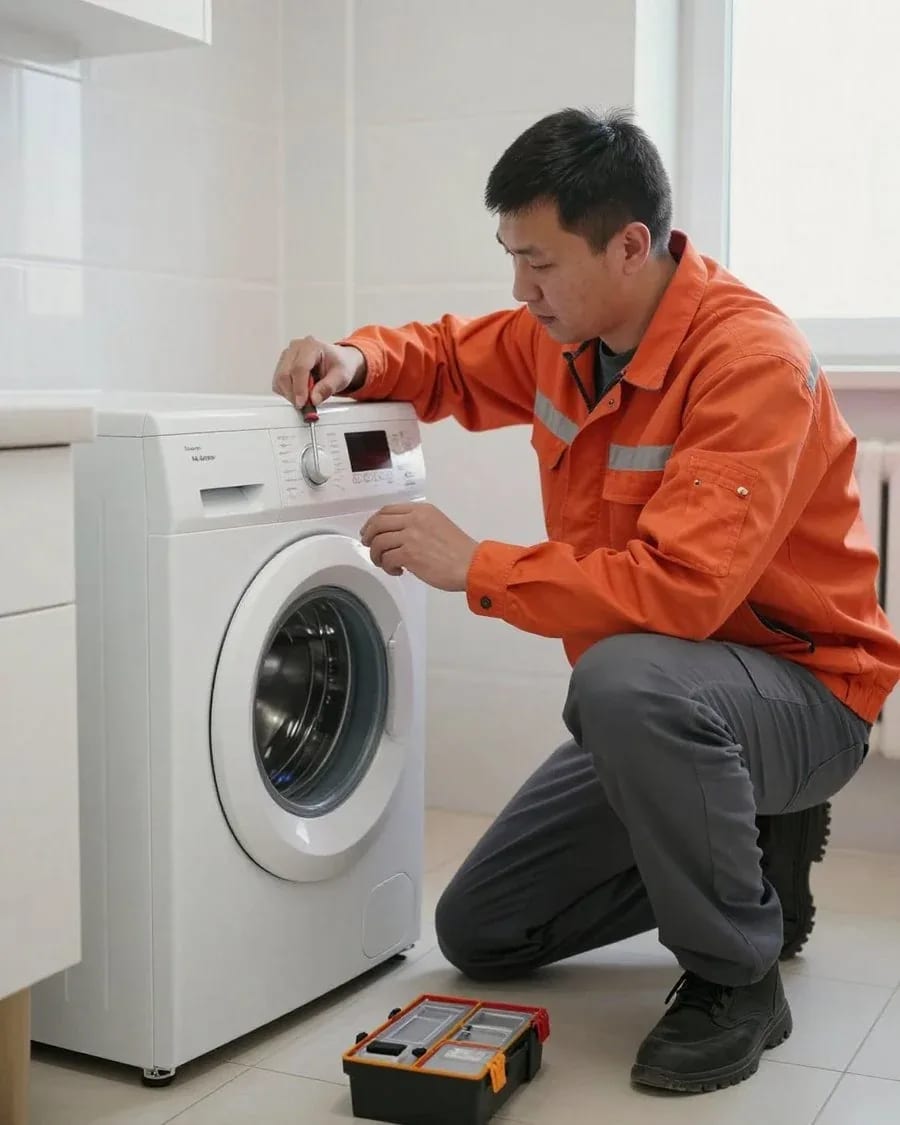
The department has 7 specializations — they are listed on the technicians' cards.
experience10 yearsGraphics card repair technician
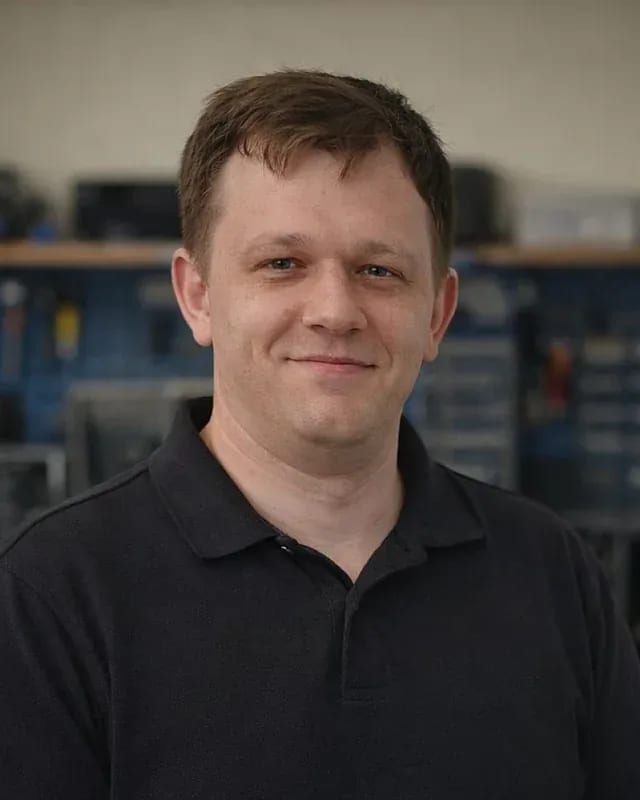 experience6 years
PC and laptop diagnostics technician
 experience8 years
Laptop repair engineer
 experience10 years
Software installation specialist
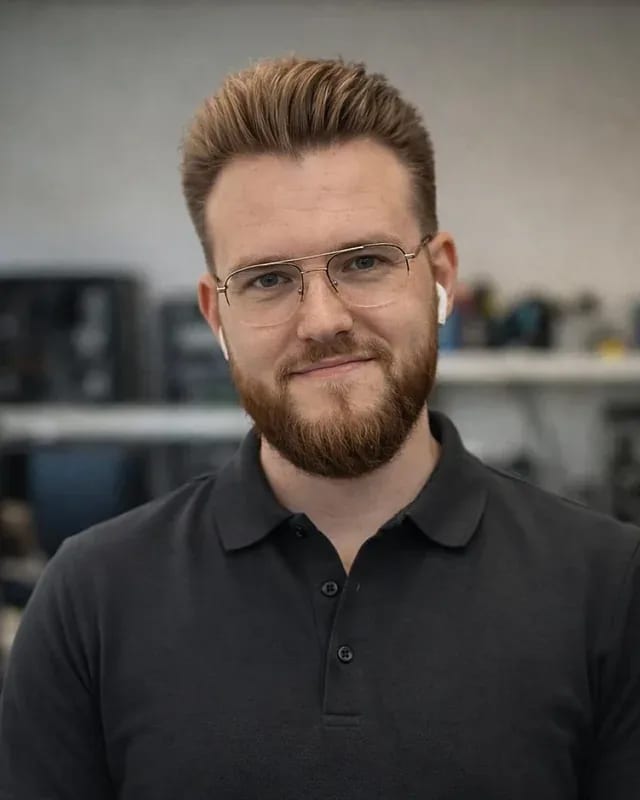 experience7 years
PC and laptop repair technician
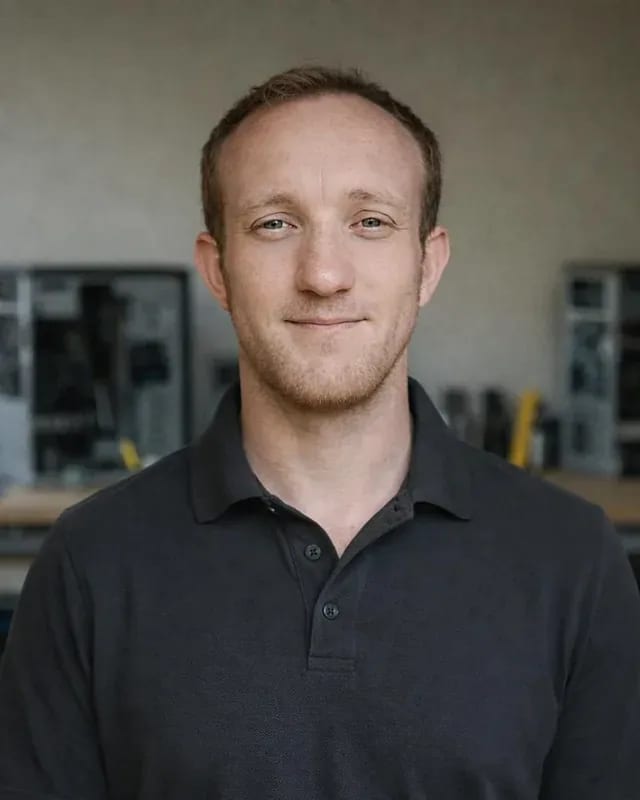 experience13 years
Diagnostics and virus removal specialist
 experience15 years
Consultant
We reply during working hours
Leave a request in any convenient way, and the technician will agree on a visit time and confirm the drive model.

Warranty question? Call us
+7 (778) 046 88 53We handle hard drive repair in Almaty with our own technicians: HDDs in computers and laptops, external drives, SATA and M.2 SSDs. A technician comes out within 60 minutes anywhere in the city, diagnostics are free, and we name the cost after them. We give a 1-year warranty on labor and parts, and our technicians have 4 to 20 years of experience.
Drives fail in different ways, and almost every symptom points to its own component. The sound at startup, read speed and behavior in the system show where to start testing and what can still be saved.
Our free diagnostics start with a short conversation about the symptom: when the noise appeared, whether the laptop was dropped, what the system shows at boot. Then the technician connects the drive and reads its SMART log — the counters of reallocated and pending sectors, interface errors, power-on hours and temperature. That way hard drive repair in Almaty starts with facts rather than guesses, and we name the cost of the work only after this check. Our technician, with 4 to 20 years of experience, also listens to how the drive spins up, whether the sound changes under load and whether the read speed stays steady. If an HDD is knocking, we do not run long surface tests, so as not to strain the heads. First we swap the cable and check the power and the connector — a simple cause is ruled out before the drive is put through tests.
| Symptom | Likely cause | What we check first |
|---|---|---|
| Clicking at power-on | Head assembly, surface | Startup sound and SMART |
| Does not spin up, silent | Controller board, power | Power, board and cable |
| Beeping or humming without spin-up | Stuck heads, motor | Spindle spin-up |
| Freezes and slow reading | Unstable sectors | Sector counters |
| Wrong capacity in the system | Firmware failure | Model and capacity in BIOS |
| SSD disappeared from the system | Controller, firmware, connector | M.2 or SATA contacts |
| External drive not visible | USB bridge, cable, port | Cable and enclosure board |
An HDD has mechanics — magnetic platters, a spindle motor and a head assembly — while an SSD has none, so their failure signs are different. A hard drive more often warns you in advance: clicking and humming appear, speed drops, and the number of reallocated sectors in SMART grows. The heads move over the surface at a microscopic gap, and dropping a running laptop or strong vibration hits them first. A solid-state drive stores data in NAND flash cells, and a controller decides how writes are spread across them. That is why an SSD often fails suddenly: it worked yesterday, and today it is missing from BIOS or opens files in read-only mode. Knocks hardly bother it, but it is sensitive to overheating and power surges. A silent solid-state drive is not necessarily healthy — its wear shows only in SMART, and it is worth checking that log every few months.
A hard drive has three groups of faults — mechanics, electronics and the magnetic surface. By the sound and by how the computer reacts, they can usually be told apart even before detailed tests.
Clicking at power-on most often means the heads cannot read the service information from the platters and keep returning to the park position. The causes vary: wear and damage to the head assembly after a drop, scratches on the surface, a firmware failure and, less often, weak power from an adapter or an old power supply. Regular knocking at even intervals, grinding and whistling point to a mechanical fault rather than a software glitch, and no utility will fix it. A laptop dropped while running is especially vulnerable, because at that moment the heads were over the surface. Dropping a switched-off device is less dangerous, but it can still shift components. If the HDD starts clicking, turn off the computer and do not power it again: every new start risks scratching the platters and turning a difficult recovery into an impossible one.
If an HDD does not spin up, makes no sound and is not visible in BIOS, we first check the simplest things: the SATA cable, the power connector and the computer's power supply itself. For an external drive, the first suspect is the USB bridge — a small board inside the enclosure that converts the SATA interface to USB — along with the cable and the port. Then the technician inspects the controller board for signs of overheating, darkened components and damage from a power surge or an unsuitable power adapter. A burnt protection component on the board is sometimes visible right away. If the electronics are fine but the drive is still silent, the cause lies deeper — in the motor or stuck heads. You cannot simply swap in a board from an identical model: its memory chip holds adaptives, settings unique to that specific unit, so a donor board is prepared by moving this chip over.
A solid-state drive fails quietly, without clicking or humming. It disappears from the system, loses speed or refuses to write, and each of these signs has its own cause.
When an SSD disappears from BIOS, we check the M.2 or SATA connector, the power and whether the controller responds. On M.2 drives, the contacts of the module and the slot oxidize and lose pressure after a laptop is carried around, so the technician removes the module, cleans the contacts and seats it again. If the device shows up with zero capacity or with a strange service name instead of the model, that is a sign of a controller and firmware failure: the service tables the controller uses to find data in the cells are damaged. This happens after a sudden power loss during writing. On SATA models we also check the cable and the motherboard port, and on NVMe models whether the slot supports the right protocol. Do not update the firmware on a drive that is already disappearing: if the update fails, the controller may stop responding altogether, so copy the files first and deal with the rest later.
NAND flash cells withstand a limited number of rewrite cycles, and the manufacturer states the drive's endurance in terabytes written (TBW). The controller spreads writes evenly and swaps worn blocks for spare ones, and when the spares run out, many SSDs switch to read-only mode. In this mode files open, but you cannot save a new document or update the system, and Windows may stop booting. SMART shows the remaining endurance: on NVMe it is the percentage used, and on SATA models it is a wear attribute that each manufacturer names in its own way. Slowdowns during long writes are also tied to how the memory works: when the fast cache runs out, speed drops noticeably, and that is not always a fault. Read-only mode is the last chance to copy your files — reboots and tests do not extend it, they only waste time.
What the owner does right after a failure often decides whether the files can be saved. A few simple rules protect the drive from extra strain until the specialist arrives.
If the drive still opens, copy the most valuable data right away and to a different device — an external drive, a flash drive or the cloud. Do not move files within the same device from one partition to another: physically they stay on the same platters and cells. Start with folders that cannot be recreated — photos, work documents, accounting databases, keys and passwords. If a single file takes very long to copy or throws an error, skip it and move on, otherwise the drive will spend hours rereading one damaged area. On a laptop, plug in the charger so the process is not cut off by a flat battery, and put games and updates on hold for now. Copy folder by folder in order of importance rather than the whole drive at once: if it fails midway, the most important data will already be safe.
When you place a request, we ask you to name the type of device, the drive model if you know it, and describe how the fault shows itself. The model is usually printed on the label on the case and listed in Windows Device Manager. Details matter: whether the drive clicks or is silent, whether it is visible in the system, whether a blue screen appears, whether there is a burning smell. Tell us whether you tried running recovery software and which folders you need first. From this description the technician knows in advance which cables and adapters will be needed. A technician coming out within 60 minutes anywhere in the city is handy when the desktop sits at home or in the office and is awkward to carry. Mention a drop, liquid spill or power surge right away: these events change the testing plan, and the technician will start not with tests but with an inspection of the mechanics and the board.
After testing it becomes clear what makes more sense: bringing the drive back into service, moving the files off it, or installing a new one and transferring the system. The decision depends on which component failed.
Repair makes sense when the fault is in the outer part — the cable, the connector, the USB bridge of an external enclosure or the controller board — while the surface and mechanics are intact. In such cases the drive reads fully again after the work, and the owner gets access to all the files. Worn surfaces and heads are a different story: access to the data can be restored, but such an HDD will no longer be reliable storage. SSDs follow similar logic — contacts and power can be fixed, but worn cells cannot be restored. We show the SMART results and explain the options, and we name the cost after free diagnostics so the owner can compare repair with buying a new device. A worn drive should not stay your only storage after repair: it is used for copying, and it is better to keep working on a new drive.
| Situation | What we do | Result for the owner |
|---|---|---|
| Damaged cable or connector | Replace the cable, restore the connector | The system sees the drive again |
| Failed enclosure USB bridge | Replace the bridge or enclosure | The external drive reads again |
| Damaged controller board | Restore the board | Access to files returns |
| Bad sectors are growing | Copy files to a new drive | Files are safe, drive replaced |
| Old HDD slows the system | Install an SSD and clone the system | Fast boot without reinstalling |
| SSD in read-only mode | Copy the data, install a new SSD | System on a healthy drive |
When the HDD in a laptop is worn out, we install an SSD of the right format in its place and move the system over by cloning. First the technician checks what the device supports: a 2,5-inch bay with a SATA interface, an M.2 slot or both. Cloning carries Windows, programs and settings over to the new drive, so there is no need to reinstall everything. After the transfer we check the boot order in BIOS (UEFI) and the TRIM function, and a healthy old drive can stay in as a second one for archives. A computer with an SSD boots and opens programs noticeably faster than with the old hard drive. The 1-year warranty on labor and parts applies. Before buying an M.2 SSD, find out which protocol the slot supports: SATA and NVMe models look alike but are not always interchangeable.
Some of the work the technician does at the owner's home or office, some at the service. Below is how the visit works, when the drive is taken in and how to accept the result.
A Tech Service technician comes out within 60 minutes anywhere in the city and runs free diagnostics right at the owner's place, at home or in the office. We work with our own technicians and no middlemen, so the specialist who tested the drive is the one who explains the result. On site he reads SMART, checks the cables, power and connectors and, if needed, removes the drive from the desktop or laptop. This way on-site hard drive repair in Almaty solves simple cases right there: replacing a cable, restoring a contact, installing an SSD and moving the system, copying files from a drive that still reads. Our technicians have 4 to 20 years of experience, and they name the cost after diagnostics, before the work starts. Have an external drive or a flash drive with enough space ready for the visit: then a copy of your important files can be made at once, without putting the transfer off.
We take the drive to the service when the job needs a calm setting and time: lengthy sector-by-sector copying, controller board repair, testing under load for several hours in a row. Copying a weak HDD is slow because it rereads difficult areas, and such a process must not be interrupted. First a full image is made, and files are then extracted from it, so the worn surface is read once rather than on every attempt. The technician asks in advance which folders matter most so as to start with them. If the drive is encrypted with BitLocker, have the recovery key ready: without it the files cannot be copied. When the drive can be removed, it is enough to hand over just the drive, and the laptop or desktop is needed only to check compatibility of the new SSD and that the system boots.
We give a 1-year warranty on labor and parts, and you can pay for the repair via Kaspi QR, Kaspi Red, card, cash, or bank transfer for companies. The handover takes place with the owner present — the technician shows that the drive is detected with the correct capacity, there are no new errors in SMART, and the read speed is steady. After moving the system we check that Windows boots, the main programs work and the user folders are in place. If files were copied from a damaged drive, we go through what was saved together and open a selection of photos, documents and spreadsheets. Do not format or throw away the old drive until you have worked with the copy for a few days. At handover, open several files of different types and start the system from the new drive — that way the result is checked in a couple of minutes, not after the first failure.
A drive failure usually shows itself in advance, and the symptom points to where the cause lies. Here is a short summary of what a computer or laptop owner should know.
Tech Service technicians repair other appliances too — with the same 1-year warranty on labour and parts.
 Refrigerator Repair in Almatyfrom 3 000 ₸
 Washing Machine Repair in Almatyfrom 3 000 ₸
 Dishwasher Repair in Almatyfrom 3 500 ₸
 Oven Repair in Almatyfrom 3 000 ₸
 Cooktop Repair in Almatyfrom 3 500 ₸
 Air Conditioner Repair in Almatyfrom 3 500 ₸
 Boiler and Water Heater Repair in Almatyfrom 2 500 ₸
 Freezer Repair in Almatyfrom 6 000 ₸
 Tumble Dryer Repair in Almatyfrom 5 000 ₸
 Coffee Machine Repair in Almatyfrom 2 500 ₸
 Robot Vacuum Cleaner Repair in Almatyfrom 3 500 ₸
 Vacuum Cleaner Repair in Almatyfrom 1 500 ₸
 Microwave Oven Repair in Almatyfrom 2 000 ₸
 Hair Dryer Repair in Almatyfrom 1 500 ₸
 Iron Repair in Almatyfrom 3 000 ₸
 Electric Kettle Repair in Almatyfrom 2 500 ₸
 Mixer Repair in Almatyfrom 2 500 ₸
 Multicooker Repair in Almatyfrom 500 ₸
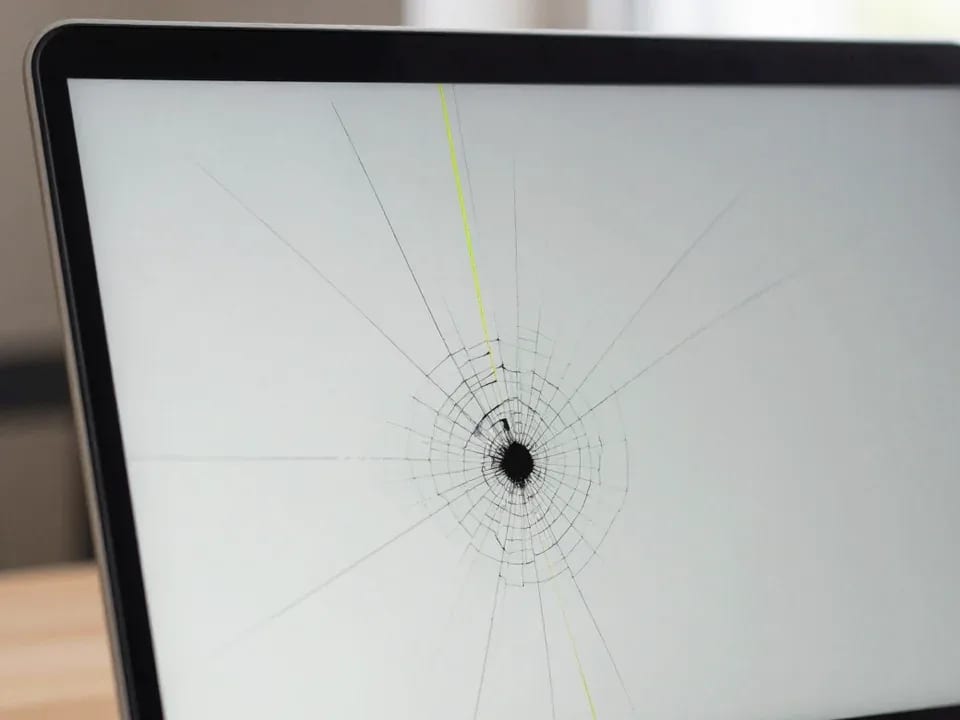
If your laptop screen is broken, turn the device off first, don't press on the display, and check the picture through an external monitor.
12 March 2026 · 11 minutes read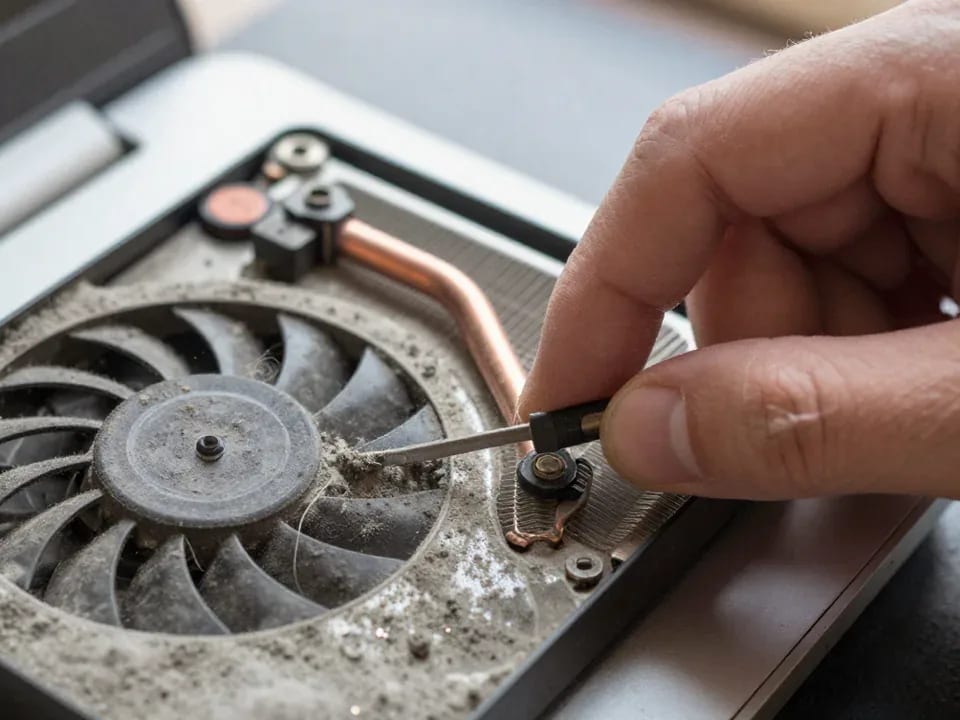
If your laptop freezes, the first thing to do is restart it and check Task Manager to see what's loading the CPU and memory.
25 January 2026 · 12 minutes read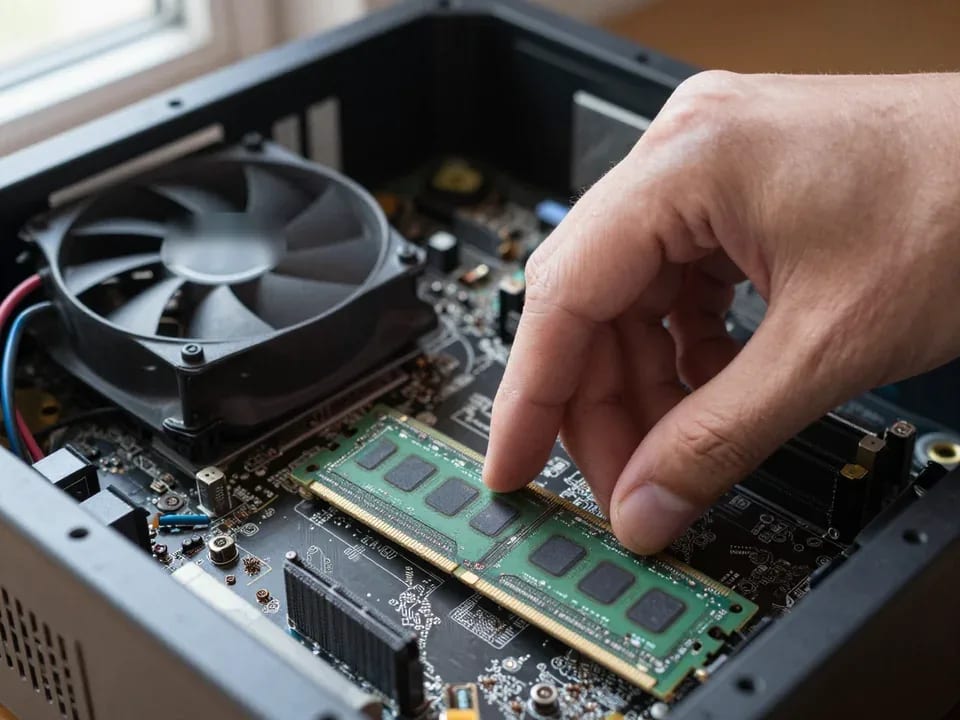
If your computer won't turn on, start simple: check the outlet, power cable, switch on the power supply, and the power button.
19 January 2026 · 13 minutes read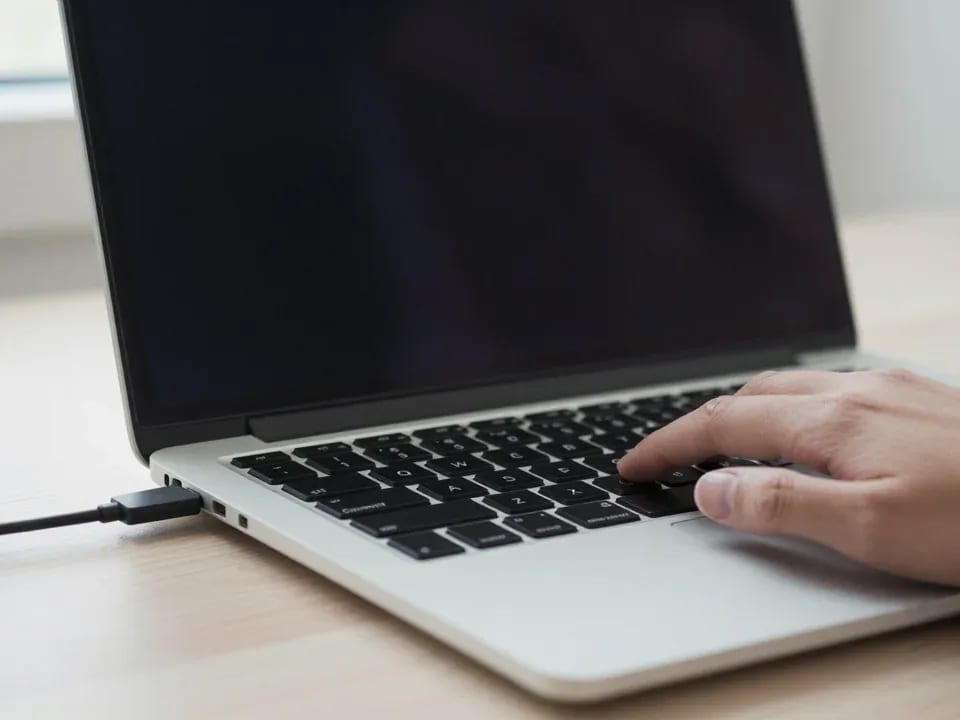
If your laptop won't boot, first determine which of two states you're in: the device doesn't respond to the power button at all…
13 December 2025 · 12 minutes read