
Why Your Laptop Freezes and Slows Down
If your laptop freezes, the first thing to do is restart it and check Task Manager to see what's loading the CPU and memory. Tech Service in Almaty arrives at your home within 60 minutes, provides free diagnostics, and offers a 1-year warranty on labor and parts.
Freezes almost always fall into three groups: system overload, overheating, and hardware wear. Let's look at how to tell them apart by the laptop's behavior and where to start checking.
Software Causes: What's Loading the System
Most often, a laptop slows down due to background programs, startup items, and accumulated system junk, not because of hardware failure. Task Manager shows which processes are holding the CPU and memory: a browser with a dozen tabs, messengers, cloud drive clients, and background updates. Startup accumulates dozens of entries—antivirus, sync tools, video driver panels, game updaters—and each one starts with Windows. Junk files, old drivers, and leftovers from removed programs slow down system response, while viruses and miners load the CPU stealthily, without open windows. It's easy to check: open Task Manager and look at usage at idle, with no applications running. If the CPU is above 80% at idle, software is to blame, and you should start with startup items, not by taking the case apart.
Overheating and Dust as a Cause of Freezes
When a laptop freezes for seconds and then recovers, and the case is hot and the fan is noisy, overheating and a dust-clogged cooling system are almost always to blame. The cooler gets clogged with dust and lint, the radiator loses airflow, and the thermal paste between the CPU and radiator dries out after a couple of years of use. The processor hits the temperature limit and throttles—reducing frequencies to avoid burning out. That's where the wave-like freezes come from: the laptop works fine, then freezes for a few seconds. In our practice, technicians resolve such cases by cleaning the cooling system and replacing thermal paste, not by reinstalling Windows—reinstallation doesn't remove dust from the radiator. If freezes come in waves and coincide with fan noise, start with a cleaning.
When Hardware Is to Blame: Disk, Memory, Board, Power
Hardware freezes are caused by a failing SSD or hard drive, insufficient RAM, motherboard issues, power supply problems, or a worn-out battery. Bad sectors and drive wear cause freezes when reading files, hanging at boot, and disappearing partitions, while insufficient capacity or a faulty memory module causes freezes when opening several programs and blue screens. Damaged power circuits and controllers on the motherboard cause random freezes and port failures, voltage drops under load lead to spontaneous shutdowns and reboots, and worn battery cells cause sudden shutdowns when running on battery. If freezes are accompanied by disk clicks, a blue screen, or spontaneous shutdown, it's no longer software, and you need to check components one by one.
What to Do Yourself While the Laptop Is Frozen
The first steps take a couple of minutes and require no tools. The main thing at this moment is not to pull the power cord and not to lose unsaved data while the system still shows signs of life.
Laptop Completely Frozen and Not Responding to Mouse
- Pause for 30–60 seconds: let the system finish a background operation—a short stall often passes on its own if you don't press keys.
- Ctrl+Shift+Esc: Task Manager can be called up even when the mouse is frozen and the desktop doesn't respond to clicks.
- End task: find the process with the status "Not Responding" in the list, select it, and end it—this frees up memory and the processing queue.
- Power button for 5–10 seconds: a hard hold is a last resort; after it, unsaved files are lost, so use it only if Task Manager won't open.
How to Safely Restart and What to Check After
After rebooting, open Task Manager and go to the Startup tab — there you can see which programs launch with the system and slow it down. This tab lists messengers, cloud clients, updaters, and graphics card control panels; each entry has a "Startup impact" column, where a high value directly points to the culprit behind slow boot times. Disable them one at a time, not all at once: that way you can tell which process is bringing back the freezes. Restart via the Start menu, not the button on the case — the system has time to close services and doesn't leave corrupted files. Disabling unnecessary startup programs often eliminates freezes in the first minutes of operation, but it doesn't fix overheating or a failing disk: if the stutters return after half an hour of load, look for the cause in cooling and storage, not in the startup list.
What to do if it only lags in the browser and games
The laptop freezes — what to do in this scenario: check for overheating under load, graphics card drivers, and insufficient RAM. A browser with a dozen tabs and a game on medium settings put more strain on the CPU and graphics than office programs, so that's where a dust-clogged heatsink shows up. Look at the drivers: an outdated video adapter version causes stuttering and freezing of the image even with working hardware. Lack of RAM leads to slowdowns when the system resorts to the page file on disk — with 8 GB and a couple of heavy applications, this is immediately noticeable. Reinstalling Windows helps with software glitches, but if the stutters return under load, the cause is in the hardware or cooling, and touching the system is pointless.
How to tell a software freeze from a hardware one
The line between software and hardware is visible by when and how exactly the stutters appear. Below is a simple step-by-step check that rules out one cause after another.
Signs that point to a software cause
A software glitch is tied to a specific program, a Windows update, or launching the browser, and after a reboot the system works fine. Graphics card and chipset drivers cause freezes when scrolling video and working with graphics, while a conflict of background services causes them at system startup. A fresh update often breaks compatibility with previous versions of utilities, and then the stutters repeat in the same place. It's easy to check: boot into safe mode — if everything is stable there, look for the culprit among installed software and drivers. Another marker is that the glitch is fixed by restarting Explorer or ending the task, and the laptop itself continues to respond to the keyboard. When the stutters started right after an update or installing a new program, software is to blame, and rolling back the changes solves the problem faster than disassembling the laptop.
Signs of a hardware failure
A hardware cause is revealed by artifacts on the screen, a blue screen, disk clicking, spontaneous shutdowns, and freezes even in safe mode. Stripes and "squares" on the matrix point to the video chip and cable, while a recurring blue screen with the same code points to a memory or storage failure. Clicking and tapping of the hard drive indicate mechanical wear, and sudden shutdowns under load indicate power or motherboard problems. Errors in the Windows event log repeat with the same frequency as the freezes — that's also a sign of hardware. If the laptop doesn't respond in safe mode, where third-party programs don't run, the problem is almost certainly in the hardware, and component diagnostics are needed next.
How to check the disk, memory, and temperature step by step
- Disk and SSD: run the built-in error check on the drive and look at the S.M.A.R.T. attributes — growing reallocated sectors point to wear.
- RAM: test the sticks with Windows Memory Diagnostic; errors on one module are easy to confirm by removing it and leaving the other in place.
- Temperature: launch a monitor and put the system under load — a steady rise above normal operating values points to overheating and a dust-clogged heatsink.
- Order of checks: go from disk to memory to temperature, recording the result of each step so you don't go back to a cause you've already ruled out.
- Service equipment: during our free diagnostics, technicians follow the same order but with instruments, so a hidden disk or memory fault shows up where the system's built-in tools don't reveal it.
Overheating, dust, and thermal paste
Overheating is the most common cause of freezes specifically in laptops: the chassis is thin, airflow is limited, and dust builds up over years. Let's look at how to recognize the problem and what to do about it.
How to tell your laptop is overheating
- Hot chassis: the area above the keyboard and around the exhaust feels noticeably hot to the touch even during simple tasks — a sign that heat dissipation can't keep up.
- Fan noise: the cooler hums for no reason, with just a browser or a document open, even though it used to run almost silently.
- Clock throttling: the laptop freezes for a few seconds, the cursor stutters, then work resumes — that's throttling protecting the CPU from overheating.
- Freezes after 10–20 minutes: hangs don't come immediately but after warm-up, and they disappear after a pause — the classic picture of thermal throttling.
- Temperature above 90 °C under load: that reading is already a reason to clean, not to wait; keeping the laptop on a blanket or soft sofa means blocking airflow and speeding up overheating.
What dust cleaning and thermal paste replacement do
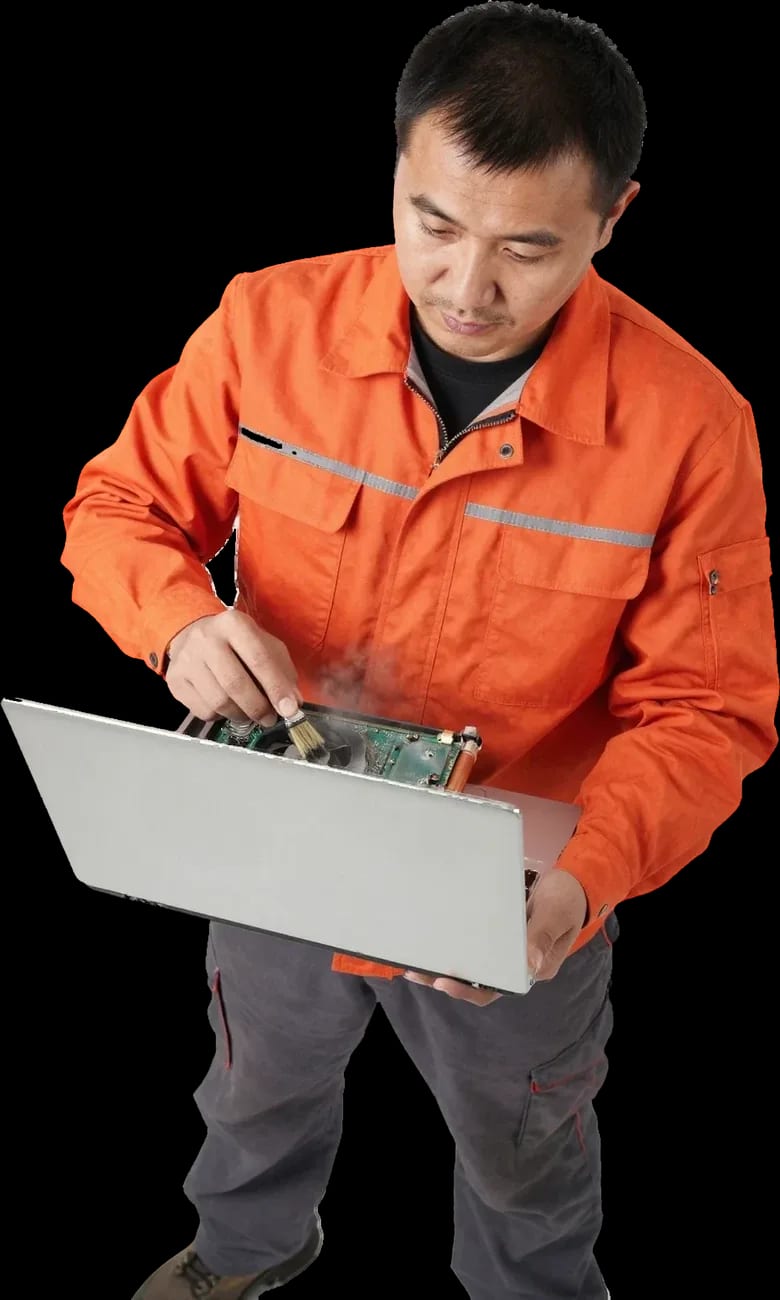
Cleaning the cooling system of dust and replacing the thermal paste restores normal heat dissipation, and the laptop stops throttling and freezing under load. We service the cooling system as a whole: remove the cooler, blow dust out of the heatsink and fins, clean the fan blades, and apply fresh thermal paste to the CPU. Dust clogs the heatsink and turns it into a solid wall — air passes by the fins, and heat stays inside the chassis. Thermal paste dries out over time and stops conducting heat, so cleaning alone without replacing it gives only part of the result: the old layer no longer connects the CPU to the heatsink. In my experience, the difference after a full service is noticeable right away — the fan drops to low RPM, and the chassis stops burning your hands.
DIY or hand it to a technician
Taking a laptop apart yourself is only worth it if you have experience and tools; otherwise it's easy to damage cables and mounts, and putting it back together without losses is harder than it seems. Fragile chassis clips break when pried carelessly, thin display and touchpad cables tear from a sudden movement, and screws of different lengths get put in the wrong places during reassembly and pierce the board. Our technician arrives at your home within 60 minutes and does the cleaning and thermal paste replacement on site, so there's no need to take the laptop to a service center. Diagnostics are free, and the warranty is 1 year on labor and parts. If you doubt your abilities, let a technician handle the service: the risk of damaging a cable costs more than a calm cleaning.
Freezes when Windows loads
Freezing at startup is a separate scenario: the operating system doesn't reach the desktop and hangs on the logo, and the causes here are different from those behind freezes during work.
Freezes on the logo or before the desktop
If your laptop freezes on the Windows logo or before reaching the desktop, the most common culprits are a failed update, corrupted system files, or disk problems. Startup stalls at the stage when the operating system reads system files and queries the drive: a faulty update package or a bad sector interrupts this process, and the screen freezes. When the hang repeats at the same point—after the logo, on a blue screen, on the spinning indicator—it narrows the causes down to the bootloader and system files. Booting into safe mode helps separate software failures from disk failures: if the screen still freezes there, the issue is hardware, and the next step is to check the drive and memory.
What to check in BIOS and boot settings
- Boot order: make sure the internal drive is first, not a USB stick or network—an extra device check delays startup.
- Disk mode: check that the SATA or NVMe mode matches the one the operating system was installed under—a mismatch causes freezing on the logo.
- Drive visibility: see if the disk is detected in the device list—if it's missing, the boot files won't be found.
- Reset settings: restore BIOS to factory defaults if the freezing started after a firmware update or replacing components.
- Device order after reset: set the drive priority again—a reset returns factory values and may disrupt the previous sequence.
When startup freezing means the disk or the motherboard
If the system won't boot and the disk isn't visible in BIOS, the cause is either the drive or the disk power circuit on the motherboard, and diagnostics are essential. An SSD with a worn controller stops responding to requests, and a hard drive with a damaged service area freezes when reading the partition table; in both cases, the drive may disappear from the device list. The motherboard adds its own scenario: an oxidized connector and sagging power on the disk line produce the same symptom even though the drive itself is fine. Our diagnostics are free, so they reveal whether the issue is the disk itself or the connector and power—this determines what to repair. A technician arrives at your home within 60 minutes anywhere in the city, and there's a 1-year warranty on labor and parts.
When it's time for service and how to call a technician in Almaty
Below is a clear boundary where self-help ends and how to call a specialist without taking your laptop to a service center. We'll go over the signs that you need a technician, what diagnostics show, and how a home visit works.
Signs it's time to call a technician
- Failures in safe mode: if the system lags even where third-party programs don't run, the cause isn't software but something deeper.
- Blue screen: an error with a code during startup points to a driver, memory, or drive failure.
- Clicking and grinding from the disk: mechanical noise from the case almost always means the hard drive is on its last legs.
- Spontaneous shutdowns: the laptop turns off without command—this indicates overheating or power sag.
- Overheating after cleaning: if the cooler and thermal paste were refreshed but the temperature stays high, hardware diagnostics of the motherboard are needed.
- Recurring freezes: failures return a day or two after reinstalling the system—meaning it's not a software issue.
What we check during free diagnostics
| What we check | How we check | What we detect |
|---|---|---|
| Hard drive and SSD | Error and speed test | Faulty drive, data loss |
| RAM | Stability test | Insufficient or failing memory |
| Cooling system | Temperature measurement under load | Overheating, dust-clogged cooler |
| Power | Check of the power supply and battery | Power sag, battery wear |
| System | Check of drivers and startup items | Software causes of freezes |
How to book a technician for a home visit in Almaty
Tech Service is a direct contractor: our own technician arrives at your home anywhere in the city within 60 minutes and repairs your laptop at our service center, with a 1-year warranty on labor and parts. During free diagnostics, the specialist checks the disk and SSD, RAM, temperature under load, power, and cooling condition — the results show whether a part needs replacing and whether system tuning is enough. A home visit saves you from having to haul your laptop across town and leave it for days, and you can pay for the repair in any convenient way. In my view, a home visit is especially helpful for owners of heavy gaming models: carrying such a machine halfway across the city is an unnecessary risk for the screen and chassis. The technician quotes the price after diagnostics, once it's clear what exactly needs repairing, so no extra work ends up on the estimate. At the first signs of storage failure, don't put off the call — keeping your files safe matters more than saving an evening.
Speeding up a frozen laptop
Laptop issues fall into software, overheating, and hardware categories, and the type of cause determines what to tackle first. Below is a short checklist with the main takeaways.
- Reboot and Task Manager: this is the first thing that rules out software causes in a couple of minutes before touching the hardware.
- Hot chassis and short freezes: this scenario points to overheating and calls for dust cleaning and thermal paste replacement.
- Safe mode, blue screen, disk clicking: freezes under these conditions indicate a hardware failure, not a system glitch.
- Stuck at boot: check the disk and BIOS settings before reinstalling Windows.
- Steps didn't help: if self-help doesn't clear the freezes in a couple of steps, the next step is component diagnostics, not more attempts to reinstall the system.