Tech Service inspects and repairs Lenovo all-in-one PCs: a technician arrives within 60 minutes anywhere in the city, diagnostics are free, and labor and parts carry a 1-year warranty. Our technicians have 4 to 20 years of experience, and you can pay via Kaspi QR, Kaspi Red, bank card, cash, or bank transfer for companies.
Where Lenovo All-in-One PC Repair Starts
Any work on an all-in-one PC starts with finding the cause, not with replacing parts. Below is what the inspection covers, which components are checked, and how to tell a software fault from a hardware one.
What Free Diagnostics Include
Our diagnostics are free: the technician checks the power supply, screen, storage, memory and cooling of the all-in-one PC. We start every Lenovo all-in-one PC repair in Astana with an outside check of the case and ports, then power the machine on and watch the indicators, beep codes and image. Next the specialist tests the storage drive and RAM with built-in tools, reads the drive health data and monitors processor temperature under load. Our technicians have 4 to 20 years of experience, so the typical failures of the IdeaCentre and ThinkCentre lines are familiar to them. The technician explains the result for each component in plain words, so you see exactly where the fault is. In the end the customer gets the named cause of the fault and the cost of the work before repairs begin. Describe the symptoms in detail, because the order of checks depends on the first complaint.
Which Components the Technician Checks
| Component | What we check | Typical sign |
|---|
| Power supply | Output voltage, connector condition | The computer ignores the power button |
| Panel and ribbon cable | Image, cable contact | Lines, spots, black screen |
| Backlight | Brightness when viewed at an angle | Dim, barely visible image |
| Storage drive | Drive health, read speed | Freezes, slow startup |
| RAM | Module error test | Blue screen, restarts |
| Fan and heatsink | Fan speed, temperature under load | Noise, hot case |
How to Tell a Software Fault from a Hardware Fault
A software fault shows up unevenly and disappears after the system is reinstalled, while a hardware fault repeats every time and on every startup. Software causes include viruses, driver conflicts and a damaged operating system, and hardware causes include a worn storage drive, faulty memory modules and overheating. Starting from an external drive helps tell them apart: if the computer works normally from it, the problem lies in the installed system, and if the failures continue, the problem is in the components. Another sign is behavior in safe mode: if there are no failures there, drivers or installed programs are to blame, not the hardware. This check spares you needless disassembly and the replacement of working parts. Before the visit, note which actions trigger the problem and save important files to an external drive.
Why a Lenovo Will Not Turn On and Shows a Black Screen
The same complaint often hides different causes, so the symptom has to be read in detail. We look at a computer that will not start, a black screen while the machine is running, and a distorted image.
A Lenovo All-in-One PC Will Not Turn On
If the all-in-one PC does not react to the button, the technician first checks the power supply, then the motherboard and the power button itself. The power supply fails more often than other components: the cable of an external adapter frays, and the capacitors in a built-in unit wear out. When the indicators light up but nothing starts, suspicion falls on the board or memory. A short circuit on the board shows itself through hot parts near the power connector and a characteristic smell, and with such signs it is better not to switch the PC on again. Tech Service technicians arrive within 60 minutes anywhere in the city and check power right at the visit, measuring each section of the circuit. Before calling, try another outlet and another extension cord to rule out a simple cause and avoid searching for a fault where there is none.
A Black Screen on a Running Computer
A black screen while the fan is audibly running points to the panel, the ribbon cable or the backlight, not to the motherboard. If the power indicator is lit and the system boots with its startup sound, the computer has started and the defect is sought in the image path. Shine a flashlight at an angle: a faintly visible picture means the backlight has failed, and then the panel does not need replacing. A complete absence of an image even with this check is more often tied to the ribbon cable or the panel controller. The difference matters for choosing the repair, since the backlight and the panel are replaced separately and affect the scope of work differently. A system sound without a picture is an important argument against replacing the board: it is replaced last, when other components are checked and found working. A lit indicator and a sound help the specialist narrow down the causes.
Lines, Spots and a Broken Screen
- Vertical lines: usually point to damage to the ribbon cable or the panel controller and often appear after an impact or long work with a strongly heated case.
- Dark spots: appear from pressure on the screen or moisture and mean the panel layers are breaking down, so the repair comes down to replacing the panel itself.
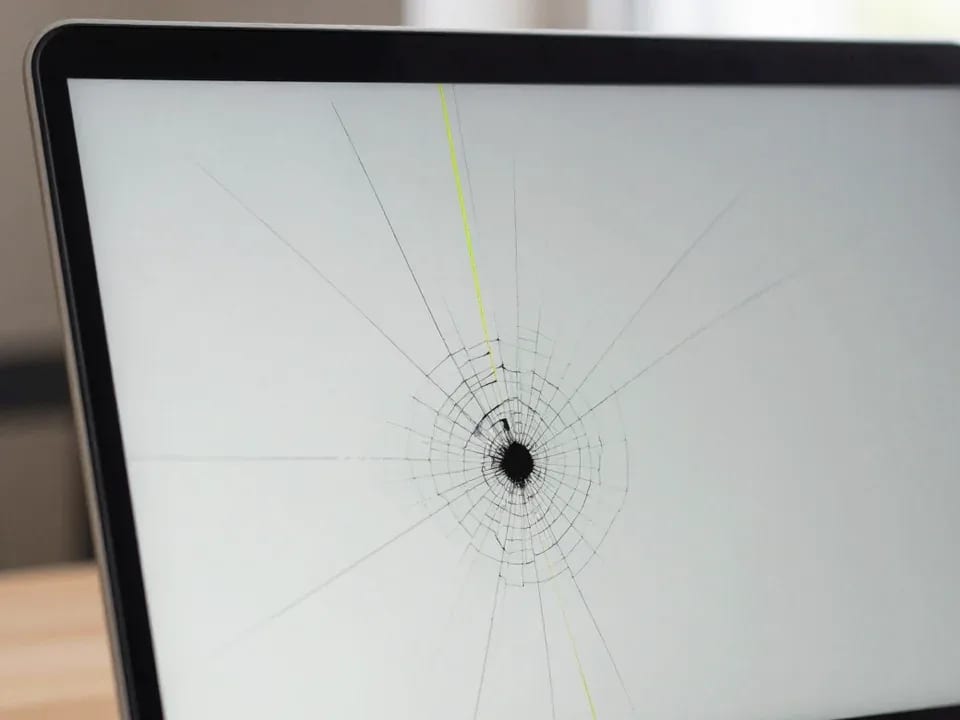
- Cracked glass: a broken screen keeps working partly, but the crack grows from vibration and heat, so replacing the panel should not be put off.
- Flicker and a dim picture: are linked to a worn backlight or panel power, and the specialist checks them before deciding to replace the whole screen.
What to Do If a Lenovo Is Noisy, Hot and Freezes
Noise, heat and freezes are usually connected and grow gradually. Below are the causes and the remedies, from cleaning the heatsink to replacing the storage drive.
Why an All-in-One PC Is Noisy and Overheats
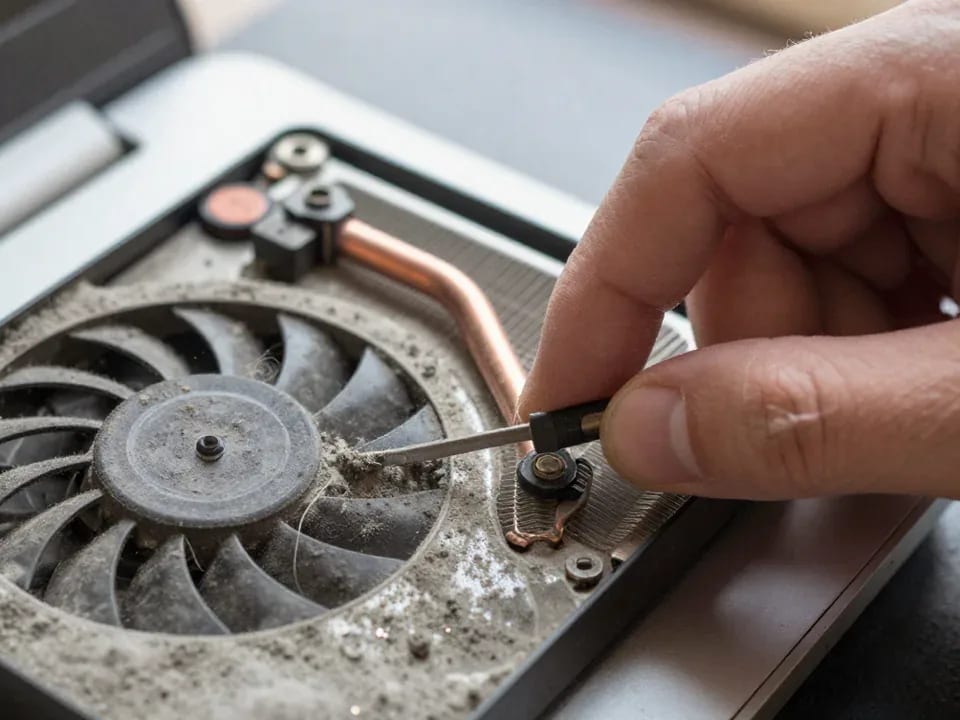
Noise and heat are most often caused by dust in the heatsink, which makes the fan spin faster while the processor overheats. In a thin case the air passes through a small heatsink, and over time the grilles clog with dust even in a clean room. The thermal paste between the processor and the heatsink dries out and conducts heat worse, so the temperature rises even with a relatively clean heatsink. The result is noticeable at once: the upper part of the case is hot, the fan hums at idle, programs slow down and the system restarts on its own. Dust-clogged slots on the rear wall add extra heat, so the longer the overheating lasts, the faster the fan and the capacitors near the processor wear out. Do not cover the ventilation grilles and do not push the unit against a wall, otherwise the air cannot circulate freely.
When Cleaning and New Thermal Paste Help
We open the case, clean the heatsink and fan, replace the thermal paste and check the processor temperature under load. Diagnostics are free, so the specialist first makes sure the cause is really overheating and only then moves on to cleaning. After the work the fan spins more quietly, and the machine stops shutting down under load. If the noise remains after cleaning, the cause is worn fan bearings, and the technician will suggest replacing that part. Then the fan and heatsink are reassembled and the temperature is compared again with the original to confirm the result. The heatsink mounting is checked separately, because loose pressure hinders heat removal just as old paste does. It is worth repeating the cleaning at the first signs of overheating without waiting for shutdowns, because constant heat shortens the life of the processor, the storage drive and the board.
Slow Performance and Replacing the Disk with an SSD
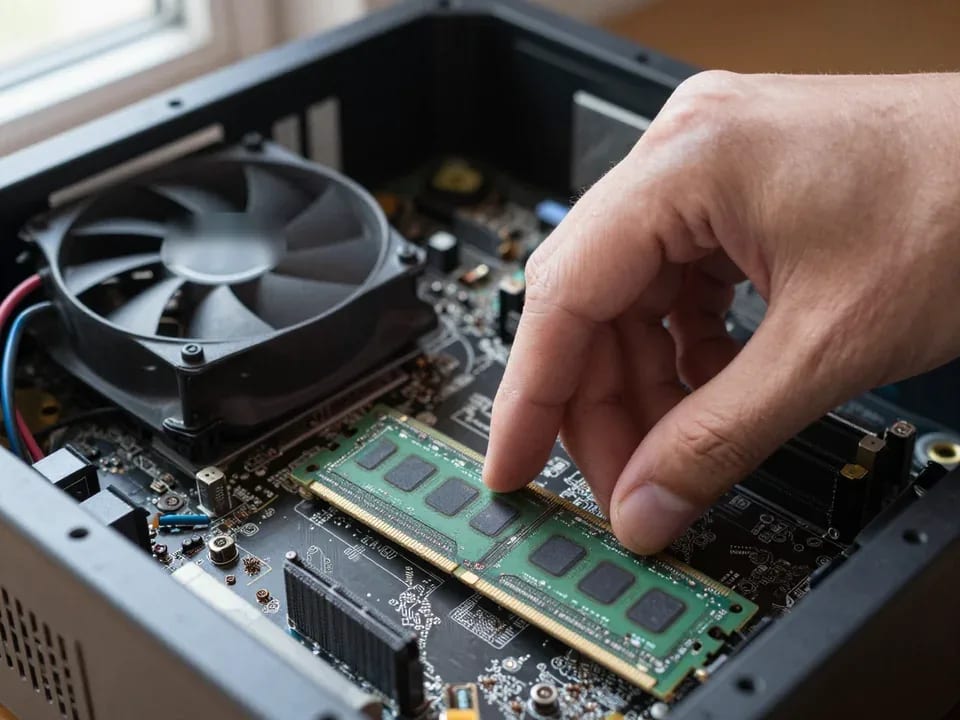
Replacing a hard drive with an SSD noticeably speeds up the startup of the system and programs in all-in-one PCs with a mechanical drive. Many Lenovo models ship with an ordinary disk, and it becomes the bottleneck when Windows starts. A solid-state drive makes no noise, runs cooler and does not fear vibration. The technician selects an SSD to fit your model's connector and, if needed, transfers the system and files while the old disk is still readable. A worn mechanical disk, for example one that clicks and loses files, is better replaced before the data is lost completely. Checking the RAM is useful separately: a shortage of memory also slows the work, and an upgrade gives an effect together with the SSD. Before the work, save important files to an external drive and say whether the system needs to be transferred.
How We Choose Parts for Lenovo All-in-One PC Repair
A part for an all-in-one PC is chosen by the component and by what the machine is used for, so an original part and a compatible analog are not equal in every case. Below are the differences and the warranty terms.
An Original Part or a Compatible Analog
An original part fully repeats the connectors and parameters of your model, while a compatible analog is made by a third-party manufacturer and its quality varies noticeably. For Lenovo all-in-one PC repair in Astana we choose the option by component: for memory, storage and the fan a proven analog usually fits, while for the panel and the motherboard an original is more reliable. The reason is simple: for a screen, brightness and color rendering matter, and an error in board parameters risks a repeat failure. The choice also depends on the task: a work computer needs stability, while a home computer used for video is fine with an analog. The technician checks compatibility by connector, voltage, dimensions and model marking, so the part fits without modification. One more argument for an original is the unified firmware and power management that do not conflict with other components. Ask the specialist to explain the reason for the recommendation for your exact component.
Where an Original Fits and Where an Analog Is Acceptable
| Component | Original | Compatible analog |
|---|
| Panel | Preferred | Possible after a brightness check |
| Motherboard | Preferred | Rarely justified |
| RAM | Suitable | Suitable with the same standard |
| Storage drive | Suitable | Suitable, SSD instead of a disk |
| Fan | Suitable | Suitable with the same mounts |
| Power supply | Suitable | Suitable with the same ratings |
Warranty on Labor and Parts
We give a 1-year warranty on labor and parts. The term covers both the completed work and the installed part, so if the same component fails again you go back to the same specialists. Technician experience of 4 to 20 years lets them name the cause of a failure at once and avoid fitting a part at random. The warranty applies to the repaired component, so it is important to understand which part was replaced and why it was needed. This matters when comparing offers: the reliability of the result depends on the diagnosis as much as on the quality of the part. Tell the technician about a repeated symptom right away, so that he checks the component and determines whether the failure is linked to the earlier work or to a new fault. Clarify the details of your case with the technician before the work begins.
What Lenovo All-in-One PC Repair Cost Depends On and What to Do Before the Visit
The final amount is made up of several factors, and preparing for the visit speeds up the search for the cause. We cover both, so that you come to the work without surprises.
What the Cost of the Work Depends On
The cost of repairing an all-in-one PC is determined by the faulty component, the model, the chosen part and the difficulty of disassembly, and the technician names the exact amount after free diagnostics. Replacing a ribbon cable is simpler than replacing a panel, and cleaning a heatsink is simpler than replacing a motherboard. The thin case of some lines takes more time to open, and traces of moisture or impact add a check of neighboring components. With us the amount is announced before the work starts, so you make the decision knowingly and without guesswork. For lines with a thin case, removing the screen requires careful work with adhesive tape and ribbon cables, so such models take longer to disassemble than usual. If the model has a touch screen, the touch controller is added to the list of checks. The diagnostics themselves are free. Compare offers by the list of works and parts, not by one final amount.
What to Do Before the Technician Arrives
- Disconnect the power: switch the all-in-one PC off with the button and pull the plug from the outlet, together with the external power adapter if there is one, to rule out a short circuit.
- Do not open the case: the latches and ribbon cables are thin, and clumsy disassembly often damages connectors and adds a new fault to the original one.
- Write down the symptoms: note when the failure appeared, what happened before it, and whether there were sounds, smells, blinking indicators or messages on the screen.
- Save your files: if the system still boots, copy important data to an external drive, because access to it may be lost when the storage drive is replaced.
- Find the model: the sticker with the name and serial number is on the rear panel or the stand, and this number immediately helps the specialist choose parts.
How the Visit and Payment Work
A technician arrives within 60 minutes anywhere in the city, and we accept Kaspi QR, Kaspi Red, card, cash or bank transfer. To order Lenovo all-in-one PC repair in Astana, it is enough to leave a request on the website: the specialist comes to the address you give, runs free diagnostics and names the cause of the fault and the cost of the work. The decision about the repair stays with you, and you choose the payment method yourself, since any convenient option will do. Tech Service works as a direct contractor: our own technician comes to you, not an intermediary. State the model and symptoms in your request so that the specialist arrives prepared. The specialist explains the inspection result in plain words, offers work options, and you discuss the part for your model before the repair begins. Specify in the request the address where the all-in-one PC stands.
When a Lenovo all-in-one PC repair pays off
The main points about Lenovo all-in-one PC faults and the order of work are gathered in a short list. It helps you get oriented quickly before contacting a specialist.
- Cause before parts: first you need diagnostics of power, screen, storage, memory and cooling, and only then a decision to replace any component.
- The symptom is ambiguous: a computer that will not turn on and a black screen have different causes, from the power supply to the backlight and the panel ribbon cable.
- Dust and thermal paste: noise, heat and freezes are often cured by cleaning the heatsink and replacing the thermal paste, if the fan bearings are sound.
- Part by component: a proven analog is acceptable for memory, storage and the fan, while an original is more reliable for the panel and the motherboard.
- Preparing for the visit: disconnect the power, do not open the case, write down the symptoms, save your files and find the sticker with the model name.